
How the AI plan generator works
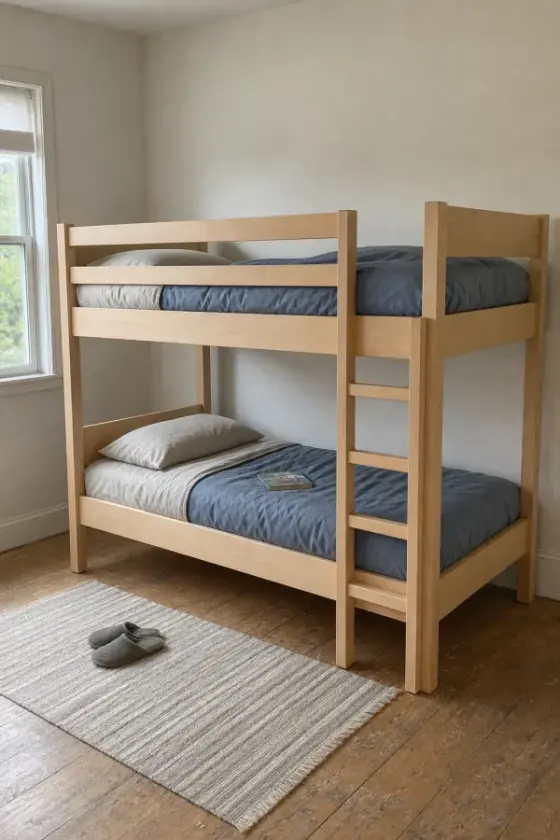
- Start with an idea. Take or upload a photo of a piece you like, describe it in words, or pick a plan from the catalog.
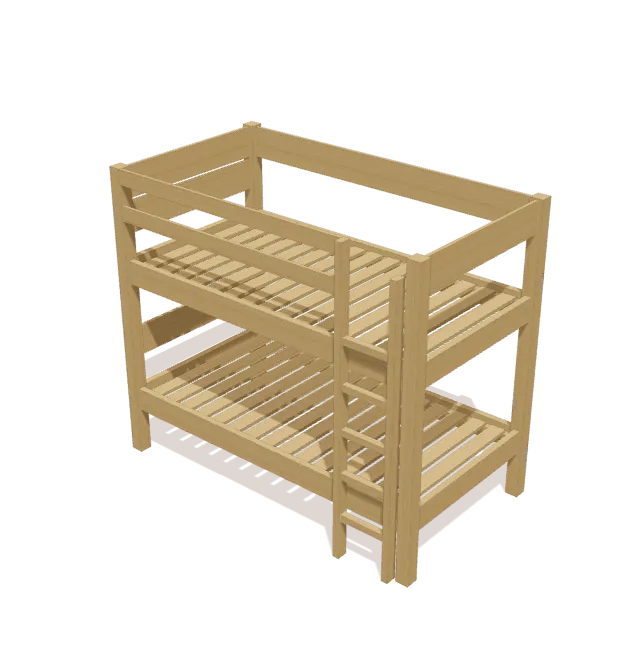
- Get a 3D model. TimberLab builds the piece from real lumber parts. Turn it around and check it from every side.
- Make it yours. Ask for changes in plain words: “make it 6 inches wider”, “add a shelf”, “make it shorter”. The model rebuilds, and the cut list and shopping list update with it.
- Build it step by step. Follow the 3D assembly guide one step at a time. If you get stuck, ask Timbo, the built-in AI build helper, about the step you’re on, and add a photo of your build.
What every plan includes
- A cut list with every part’s lumber, size, and quantity, in real stock sizes such as a 1x4 at ¾″ × 3½″.
- A shopping list that fits the cuts onto standard board lengths, with room for saw cuts.
- A tools list for the build.
- Step-by-step 3D assembly that shows which parts go on at each step.
You can see exactly what this output looks like in our free woodworking plans, which are published straight from TimberLab models, such as the complete bunk bed and raised garden bed plans.
AI plan generator vs. other ways to get a plan
| Approach | Good at | Trade-off |
|---|---|---|
| TimberLab | 3D model, cut list, shopping list, and steps from one source; edits by asking | iPhone and iPad only; a planning aid you should still check |
| General AI chatbot | Explaining techniques and answering questions | Plans come as text, with no 3D model to check the parts against |
| CAD software (SketchUp, Fusion) | Full control over every detail | You draw every part yourself; cut lists often need an extension |
| Free plan websites | Tested designs with photos | Fixed dimensions; resizing means redoing the math |
What AI plans can and can’t do
An AI-generated plan is a fast, editable starting point, not a substitute for judgment. A single photo can hide the back, underside, and joints, so treat the first model as a draft and inspect it from every side. Check the dimensions, joinery, material choices, and loads before you cut, especially for anything people sit on, sleep on, or climb. Timbo answers questions about your plan, and when a measurement isn’t in the plan, it tells you to check it rather than guessing.
Before cutting, run through our cut list checklist, and read how to turn a furniture photo into a build plan.
Questions
Is there an AI that makes woodworking plans?
Yes. TimberLab is an iPhone and iPad app that generates woodworking plans from a photo or a written description. Each plan is a 3D model with a cut list, a lumber shopping list, a tools list, and step-by-step 3D assembly instructions, and you can edit it by describing changes in plain language.
Can AI make a woodworking plan from a photo?
Yes. In TimberLab you can start from a photo of a piece of furniture. The app builds a 3D model you can inspect and edit, with a cut list and shopping list that match it. A single photo can hide the back, underside, and joints, so treat the first model as a draft and check it before you cut.
How is this different from asking a chatbot for a plan?
A chatbot answer is text. In TimberLab the cut list, shopping list, and assembly steps all come from the same 3D model, so you can see every part, and an edit such as making it 6 inches wider updates every list together.
Is TimberLab free?
TimberLab is free to download on the App Store. Some features require an in-app subscription.
Does TimberLab work on Android or a computer?
TimberLab runs on iPhone and iPad with iOS 15 or later. People who already have an account can also sign in on a computer to open their projects. New accounts are created in the iPhone app.